Router Firmware Vulnerabilities: 6 Mistakes Leaving You Exposed
Most router breaches occur because users ignore default settings, leaving hidden management interfaces and outdated code open to public exploitation without any physical access.
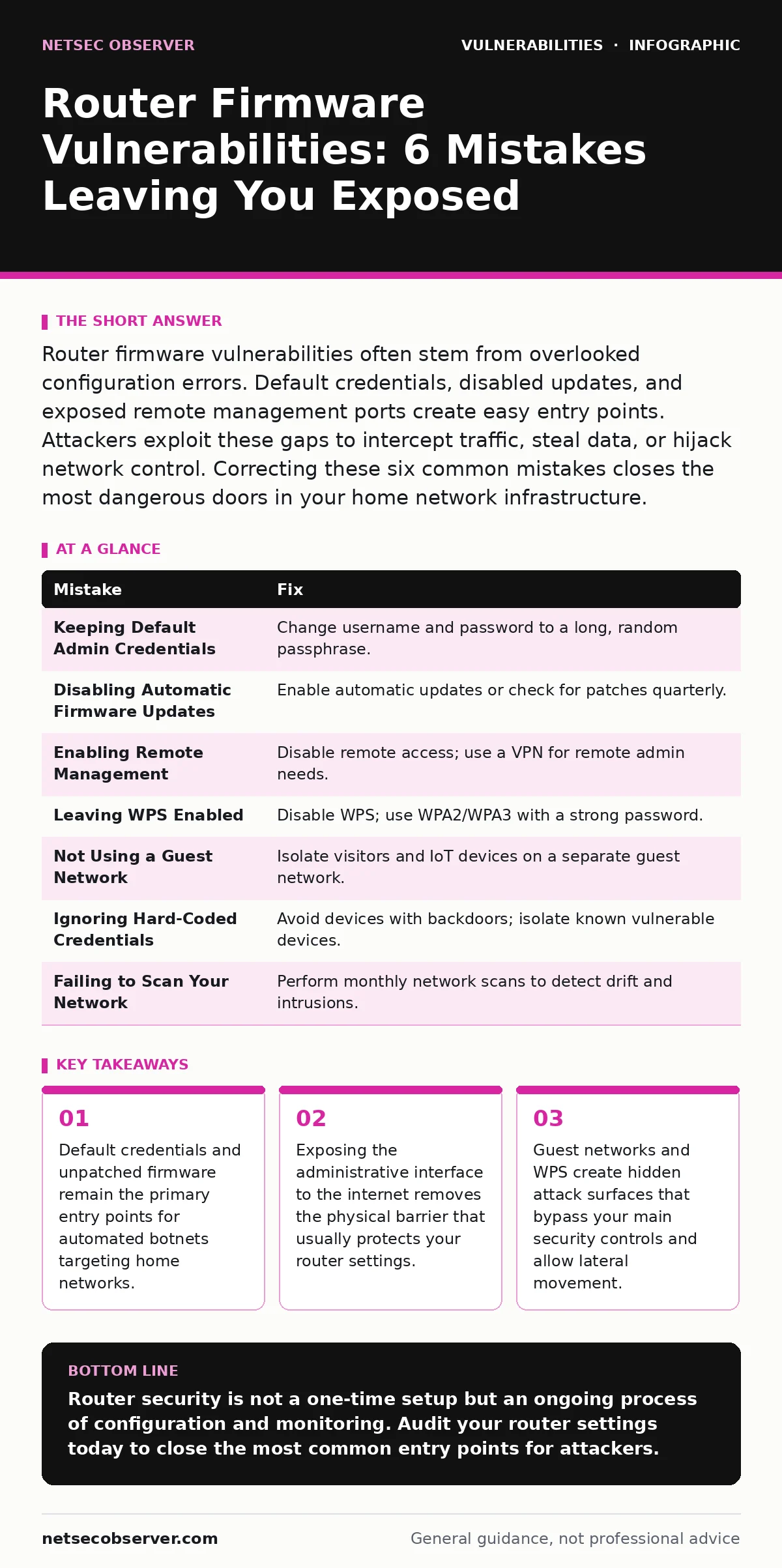
Router firmware vulnerabilities often stem from overlooked configuration errors. Default credentials, disabled updates, and exposed remote management ports create easy entry points. Attackers exploit these gaps to intercept traffic, steal data, or hijack network control. Correcting these six common mistakes closes the most dangerous doors in your home network infrastructure.
Mistake 1: Keeping Default Admin Credentials
You leave the factory username and password on your router. Manufacturers ship devices with shared credentials to simplify initial setup. These defaults are published in documentation and online databases. Attackers use automated scripts to test every known combination against every IP address on the internet.
Why it hurts:
An attacker gains full administrative control of your router. They can change your DNS settings to redirect your traffic to malicious sites. They can view all passwords stored in your browser if they are not encrypted. They can install backdoors that persist even if you change the password later. This is a form of broken access control where the system fails to verify who is allowed to make changes.
The fix:
Change both the username and the password immediately after setup. Use a long, random passphrase that you do not use anywhere else. Disable the ability to log in via the default username entirely if your router firmware supports it. This forces an attacker to guess two variables instead of one, making brute-force attacks mathematically improbable.
Mistake 2: Disabling Automatic Firmware Updates
You turn off automatic updates to avoid potential instability or because you prefer manual control. Router firmware contains security patches for newly discovered flaws. When you disable updates, you keep known vulnerabilities active on your device. Your router becomes a sitting duck for any exploit published since the last update you installed.
Why it hurts:
Your router runs code with known holes. Attackers do not need to find new ways in; they use public exploits for flaws that were fixed years ago. This is similar to command injection vulnerabilities in software, where an attacker sends malicious input that the system executes as code. Unpatched routers allow remote code execution, giving attackers the ability to run arbitrary commands on your hardware.
The fix:
Enable automatic firmware updates in your router’s settings. If your router does not support automatic updates, set a calendar reminder to check for updates quarterly. Verify that the update process uses cryptographic signatures to ensure the firmware comes from the manufacturer and has not been tampered with during download.
Mistake 3: Enabling Remote Management
You enable remote management to access your router settings from outside your home. This feature opens a port on your router to the internet, allowing anyone with your IP address and credentials to log in. Most users do not need this feature for daily operation. It exposes your administrative interface to the same threats as a public web server.
Why it hurts:
You remove the network perimeter that protects your admin panel. Attackers can scan the internet for open management ports. They can attempt brute-force attacks against your credentials from anywhere in the world. This exposure increases the risk of server-side request forgery (SSRF) if the management interface has flaws that allow it to make requests to internal services on your behalf.
The fix:
Disable remote management entirely. Access your router settings only when connected to your local Wi-Fi or Ethernet network. If you must access settings remotely, use a reputable virtual private network (VPN) that routes your traffic through a secure tunnel. This ensures that only your verified device can reach the router’s admin interface.
Mistake 4: Leaving WPS Enabled
You keep Wi-Fi Protected Setup (WPS) enabled for convenience. WPS allows devices to connect to your network by entering a PIN or pressing a button. The WPS PIN has only eight digits, making it vulnerable to brute-force attacks. Attackers can guess the PIN without knowing your main Wi-Fi password.
Why it hurts:
An attacker can derive your main Wi-Fi pre-shared key from the WPS PIN. This gives them full access to your wireless network. They can monitor your traffic, inject malicious data, or launch attacks against other devices on your network. This bypasses the encryption of your Wi-Fi password entirely. It is a classic example of a weaker security mechanism undermining a stronger one.
The fix:
Disable WPS in your router’s wireless settings. Use standard WPA2 or WPA3 security for connecting devices. These protocols require the full password, which should be long and complex. If you need to connect a new device, use the Wi-Fi Protected Setup QR code feature if available, or manually enter the password.
Mistake 5: Not Using a Guest Network
You connect all devices, including visitors’ phones and smart home gadgets, to your main network. This gives every device access to every other device. A compromised smart lightbulb or a visitor’s infected laptop can scan your network and attack your computer or phone.
Why it hurts:
Lateral movement becomes easy for attackers. If one device is compromised, the attacker can pivot to other devices on the same subnet. They can exploit vulnerabilities in your main devices using the compromised device as a stepping stone. This is similar to DLL hijacking, where a malicious program replaces a legitimate one to gain higher privileges. On a flat network, any device can potentially hijack the trust relationship between others.
The fix:
Enable the guest network feature on your router. Connect all visitors’ devices and IoT gadgets to this separate network. Configure the guest network to block device-to-device communication. This isolates untrusted devices from your main computers and servers, containing any potential breach to the guest segment.
Mistake 6: Ignoring Hard-Coded Credentials in IoT Devices
You connect smart home devices that require you to create an account with the manufacturer. Some devices have hard-coded credentials in their firmware that cannot be changed. These backdoor accounts allow the manufacturer or any attacker who discovers the credentials to access the device directly.
Why it hurts:
You cannot secure the device with your own password. If the manufacturer’s credentials are leaked, every device of that model is compromised. Attackers can use these devices as part of a botnet to launch distributed denial-of-service attacks. They can also use the device to spy on your home or attack your router from the inside. This is a persistent vulnerability that you cannot fix with user-side configuration.
The fix:
Research devices before buying them. Avoid devices known for hard-coded backdoors. If you already have such devices, isolate them on a strict VLAN or guest network with no outbound internet access if possible. Monitor your router logs for unusual traffic from these devices. Consider replacing devices that cannot be properly secured.
Mistake 7: Failing to Scan Your Network Regularly
You assume your network is secure because you set it up correctly initially. Networks change over time. New devices are added, firmware is updated, and configurations drift. Without regular scanning, you do not know if a new vulnerability has been introduced or if a device has been compromised.
Why it hurts:
You remain blind to new risks. An attacker may have already gained access, but you do not know it until data is stolen or ransomware is deployed. Regular scanning helps you identify open ports, unauthorized devices, and misconfigurations. This is the principle behind external attack surface scanning, where you continuously monitor your exposed interfaces for weaknesses.
The fix:
Perform a network scan at least once a month. Use your router’s built-in device list to check for unknown devices. Use a trusted network scanner application on your computer to check for open ports and vulnerabilities. Review the scan results and address any anomalies immediately. Consistent monitoring is the only way to detect drift from your secure baseline.
| Mistake | Fix |
|---|---|
| Keeping Default Admin Credentials | Change username and password to a long, random passphrase. |
| Disabling Automatic Firmware Updates | Enable automatic updates or check for patches quarterly. |
| Enabling Remote Management | Disable remote access; use a VPN for remote admin needs. |
| Leaving WPS Enabled | Disable WPS; use WPA2/WPA3 with a strong password. |
| Not Using a Guest Network | Isolate visitors and IoT devices on a separate guest network. |
| Ignoring Hard-Coded Credentials | Avoid devices with backdoors; isolate known vulnerable devices. |
| Failing to Scan Your Network | Perform monthly network scans to detect drift and intrusions. |
Key takeaways
- Default credentials and unpatched firmware remain the primary entry points for automated botnets targeting home networks.
- Exposing the administrative interface to the internet removes the physical barrier that usually protects your router settings.
- Guest networks and WPS create hidden attack surfaces that bypass your main security controls and allow lateral movement.
Router security is not a one-time setup but an ongoing process of configuration and monitoring. Audit your router settings today to close the most common entry points for attackers.
Frequently asked questions
How do I know if my router has been hacked?
Check for unknown devices on your network, unusual traffic spikes, or changes to your DNS settings. If you cannot log in with your correct credentials, assume compromise.
Is WPA3 better than WPA2 for home networks?
WPA3 provides stronger encryption and protection against offline brute-force attacks. However, WPA2 is still secure if you use a strong password and keep firmware updated.
Can a router firewall protect me from all attacks?
A router firewall blocks unsolicited inbound traffic but does not protect against malware on your devices or vulnerabilities in the router’s own firmware.
How often should I change my Wi-Fi password?
You do not need to change it regularly if it is long and complex. Change it only if you suspect a breach or when someone who knew the password leaves your home.
How this guide was produced: written by the NetSec Observer editorial team with AI assistance, checked against the public references listed below, and reviewed when the facts change. See our editorial policy or report an error.