7 Mistakes That Let Malicious Email Attachments Bypass Your Defenses
Most attachment infections succeed because users trust file extensions, not because they click obvious links, allowing malware to hide in plain sight within standard document formats.
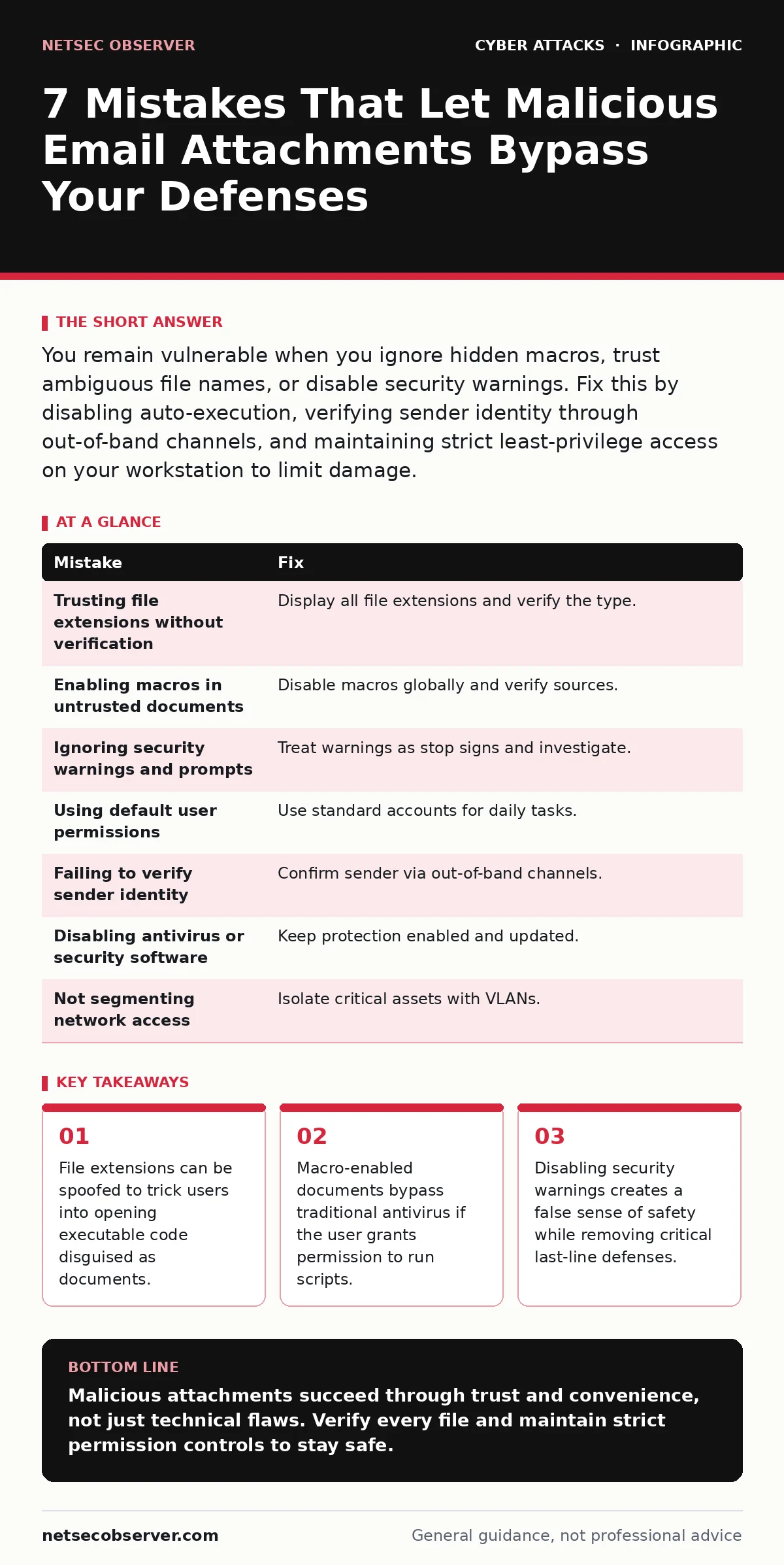
You remain vulnerable when you ignore hidden macros, trust ambiguous file names, or disable security warnings. Fix this by disabling auto-execution, verifying sender identity through out-of-band channels, and maintaining strict least-privilege access on your workstation to limit damage.
Mistake 1: Trusting File Extensions Without Verification
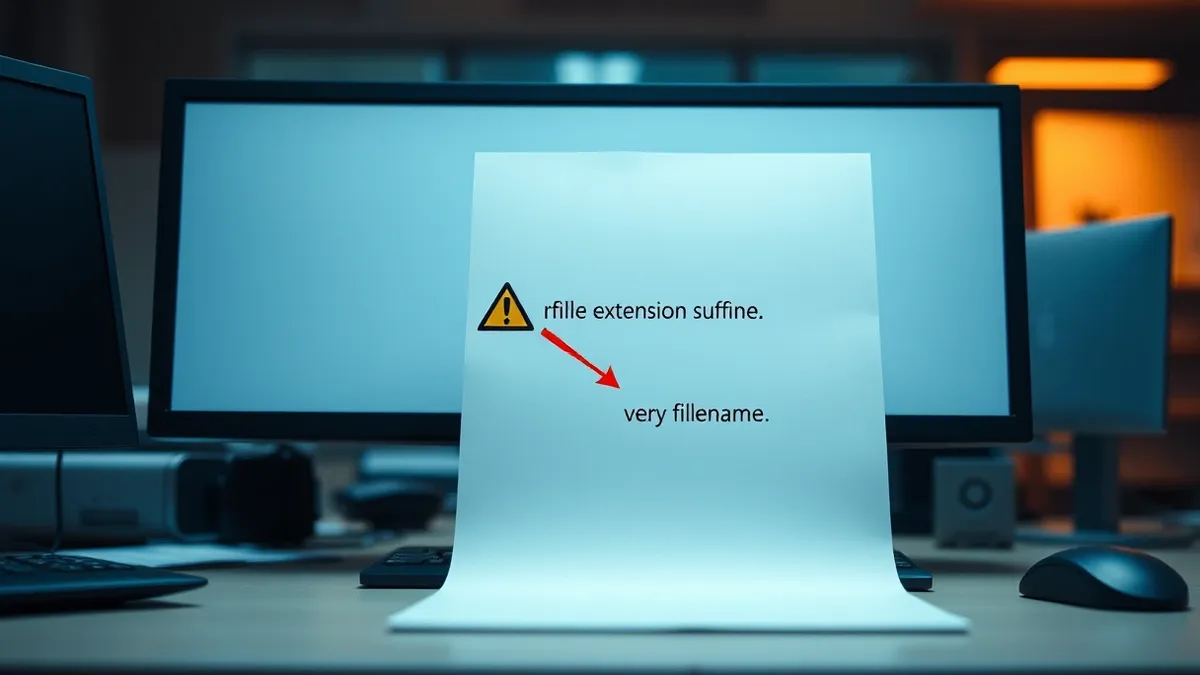
File extensions tell your operating system which program should open a file. Attackers exploit this by appending a second extension, such as report.pdf.exe. Windows hides known extensions by default, so you see only report.pdf and assume it is safe. This visual deception relies on your trust in the filename rather than the actual file type.
Why it hurts:
You execute code directly instead of viewing a document. The operating system launches the executable associated with the hidden extension. This grants the malware immediate access to your system resources. You bypass the sandboxing protections that document viewers provide. The infection happens before you even read the content. This mistake turns a passive file into an active threat vector.
The fix:
Configure your system to display all file extensions. This setting is available in folder options on Windows and file settings on macOS. Verify the extension matches the expected document type. If a file claims to be a PDF but ends in .exe, .scr, or .bat, delete it immediately. Do not attempt to open it to inspect the contents. Treat any mismatch as a confirmed malicious attempt.
Mistake 2: Enabling Macros in Untrusted Documents
Macros are small programs embedded within documents to automate tasks. Many modern office suites block macros by default, but they prompt you to enable them if you choose. Attackers embed malicious code in these macros. When you click "Enable Content," the code executes with the same permissions as your user account. This is a primary delivery method for ransomware and data theft tools.
Why it hurts:
You voluntarily surrender control of the application to the attacker. The macro can download additional payloads, exfiltrate files, or encrypt your data. It runs in the background, often without visible changes to the document. Your antivirus may not detect the script if it is obfuscated or packed. You effectively install the malware yourself by granting the necessary permission.
The fix:
Disable macros entirely via group policy or application settings. Do not rely on the prompt to make the right choice. If you must use macros for legitimate work, restrict execution to trusted publishers only. Verify the source of the document through a separate communication channel. Never enable macros in emails from unknown senders. Assume any unsolicited macro-enabled document is malicious.
Mistake 3: Ignoring Security Warnings and Prompts
Security software displays warnings when it detects suspicious behavior or file types. These alerts are the last line of defense before execution. Users often dismiss these warnings to save time or because they believe the file is safe. Clicking "Yes" or "Continue" overrides the protection mechanism. This action signals to the system that you accept the risk, allowing the potentially harmful process to proceed.
Why it hurts:
You remove the friction that prevents accidental infection. The warning exists because the software detected an anomaly. Dismissing it ignores the evidence of potential harm. Malware often triggers these warnings by attempting to modify system files or network settings. By proceeding, you confirm the action is authorized, even if you did not intend to authorize malware. You leave the door open for exploitation.
The fix:
Treat every security warning as a stop sign. Investigate the alert before proceeding. If you did not expect the file or action, cancel it immediately. Do not develop a habit of clicking through prompts without reading them. Configure your system to require administrator credentials for high-risk actions. This adds a layer of authentication that malware cannot bypass without your password.
Mistake 4: Using Default User Permissions
Default user accounts often have broad permissions to install software and modify system files. Malware exploits these privileges to persist on the system. When you run applications as an administrator, the malware inherits those elevated rights. It can install drivers, modify registry settings, and disable security tools. This makes removal difficult and allows the attacker to maintain long-term access.
Why it hurts:
You provide the malware with the keys to the kingdom. Elevated privileges allow the attacker to bypass security controls that restrict standard users. The malware can hide deeper in the system, evading detection. It can also move laterally to other systems on the network. Your compromised account becomes a launchpad for further attacks. The damage spreads beyond the initial infection point.
The fix:
Use a standard user account for daily tasks. Reserve administrator privileges for specific maintenance activities. This practice limits the scope of what malware can do. Even if you click a malicious attachment, the damage remains contained. You cannot install persistent malware without administrative credentials. This simple change significantly reduces the impact of a successful attack. See our guide on cyber incident response team procedures for handling breaches that occur despite these controls.
Mistake 5: Failing to Verify Sender Identity
Attackers often spoof email addresses to appear as trusted colleagues or vendors. They may use addresses that look similar to legitimate ones, a technique known as typosquatting. You assume the email is safe because it comes from a familiar name or domain. This social engineering tactic bypasses technical filters by exploiting human trust. You open the attachment because you believe the sender is legitimate.
Why it hurts:
You bypass your own skepticism based on false trust. The malware arrives in an email that appears normal. You do not scrutinize the content because you trust the source. This allows the attacker to deliver sophisticated payloads without raising suspicion. The infection spreads quickly because other recipients also trust the spoofed sender. Your network becomes a target for further social engineering attacks.
The fix:
Verify the sender through an out-of-band channel. Call the person or use a different messaging platform to confirm they sent the email. Check the actual email address, not just the display name. Look for subtle misspellings or unusual domain extensions. If the request seems urgent or unusual, pause and verify. Do not open attachments until you have confirmed the sender's identity.
See also: Vendor Email Compromise: Response and Recovery Steps · Detecting HTML Smuggling in Email Logs and Endpoint Telemetry
Mistake 6: Disabling Antivirus or Security Software
Users sometimes disable security software to improve performance or allow specific applications to run. This creates a window of vulnerability where malware can operate undetected. Attackers may instruct victims to disable protections as part of the attack. Even if you do not follow instructions, accidental disabling leaves your system exposed. Without real-time scanning, malicious attachments execute without interference.
Why it hurts:
You remove the primary defense against known threats. The antivirus scans files as they are downloaded and opened. Disabling it allows malware to bypass these checks. The system becomes blind to malicious activity. You lose the ability to detect and block infections in real time. Recovery becomes more difficult because the malware has more time to establish itself.
The fix:
Keep security software enabled and updated at all times. Do not disable it unless absolutely necessary for specific troubleshooting. If you must disable it, re-enable it immediately after the task is complete. Use application whitelisting to allow trusted programs without turning off protection. This ensures that only approved software can run. It prevents unauthorized executables from launching.
Mistake 7: Not Segmenting Network Access
When a device is infected, malware can spread to other systems on the same network. Without segmentation, the attacker has free rein to move laterally. They can access shared drives, databases, and other critical assets. This amplifies the impact of a single attachment click. The infection is no longer isolated to one workstation. It becomes a network-wide incident that requires extensive remediation.
Why it hurts:
You allow the breach to escalate beyond the initial point of entry. The malware scans for other vulnerable systems and exploits them. It can steal data from multiple departments or systems. The cost of recovery increases significantly as more devices are affected. Containing the outbreak becomes a complex and time-consuming process. Your entire network infrastructure is at risk.
The fix:
Implement network segmentation to isolate critical assets. Use VLANs to separate different departments and functions. Restrict access to sensitive data to only those who need it. This limits the spread of malware from an infected device. Even if a workstation is compromised, the attacker cannot reach the entire network. This strategy contains the damage and simplifies remediation. Refer to our guide on spear phishing for more on targeting specific network segments.
| Mistake | Fix |
|---|---|
| Trusting file extensions without verification | Display all file extensions and verify the type. |
| Enabling macros in untrusted documents | Disable macros globally and verify sources. |
| Ignoring security warnings and prompts | Treat warnings as stop signs and investigate. |
| Using default user permissions | Use standard accounts for daily tasks. |
| Failing to verify sender identity | Confirm sender via out-of-band channels. |
| Disabling antivirus or security software | Keep protection enabled and updated. |
| Not segmenting network access | Isolate critical assets with VLANs. |
Key takeaways
- File extensions can be spoofed to trick users into opening executable code disguised as documents.
- Macro-enabled documents bypass traditional antivirus if the user grants permission to run scripts.
- Disabling security warnings creates a false sense of safety while removing critical last-line defenses.
Malicious attachments succeed through trust and convenience, not just technical flaws. Verify every file and maintain strict permission controls to stay safe.
Frequently asked questions
Can a PDF file contain malware?
Yes, PDF files can contain embedded scripts or links to malicious sites. Always scan PDFs and avoid opening those from unknown senders.
How do I know if an email sender is spoofed?
Check the actual email address against the display name. Look for misspellings or unusual domains. Verify the sender through a separate channel.
Is it safe to enable macros if I trust the sender?
No, trusting the sender is not enough. Macros can still contain malicious code. Disable them globally and only enable if absolutely necessary and verified.
What should I do if I accidentally open a malicious attachment?
Disconnect from the network immediately. Run a full antivirus scan. Report the incident to your IT security team for further investigation.
How this guide was produced: written by the NetSec Observer editorial team with AI assistance, checked against the public references listed below, and reviewed when the facts change. See our editorial policy or report an error.