
Implement Password Managers: A Step-by-Step Rollout Plan
Centralized credential storage shifts the attack surface from human memory to a single encrypted vault, requiring strict operational controls to prevent total account compromise.
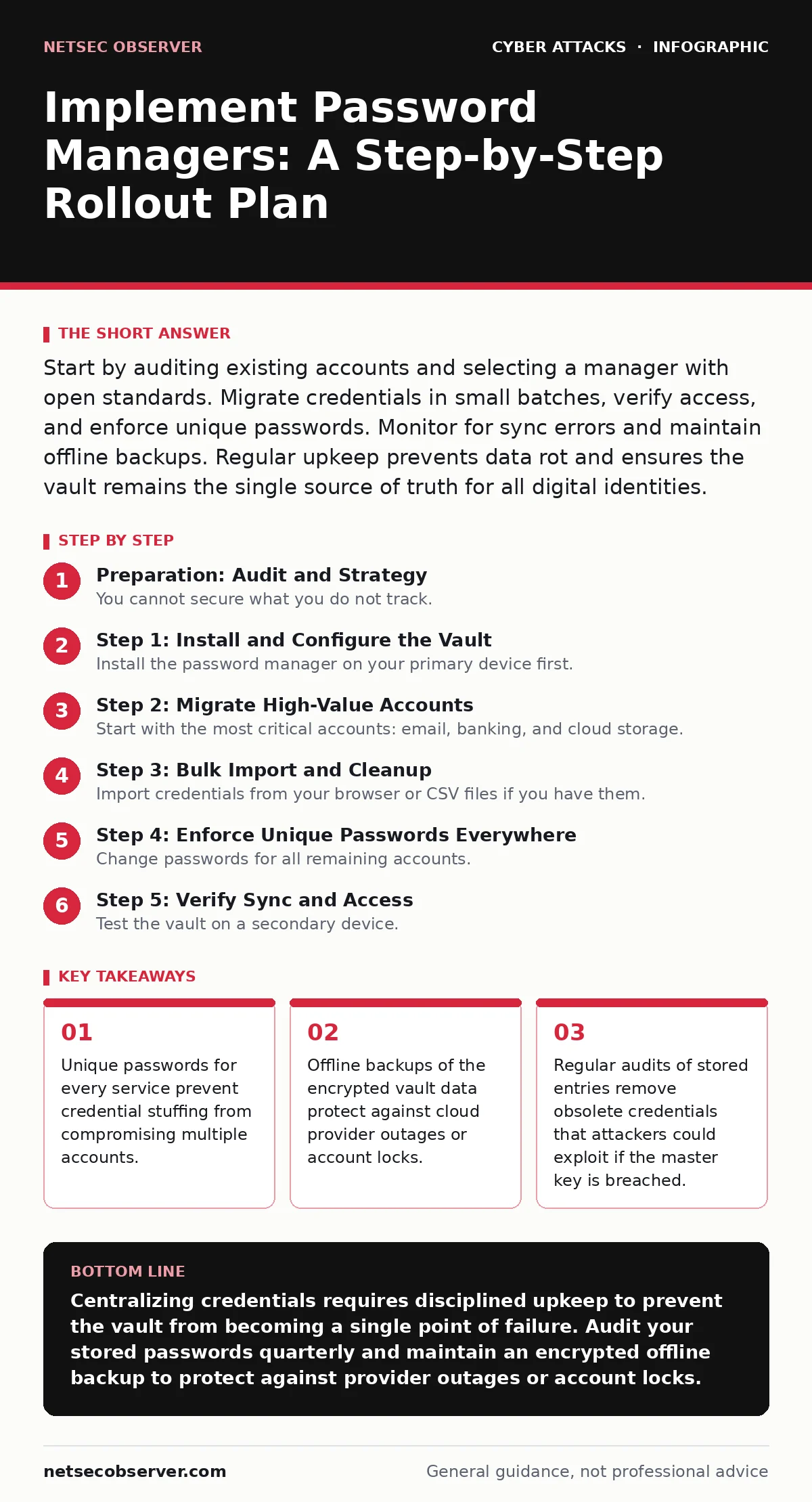
Start by auditing existing accounts and selecting a manager with open standards. Migrate credentials in small batches, verify access, and enforce unique passwords. Monitor for sync errors and maintain offline backups. Regular upkeep prevents data rot and ensures the vault remains the single source of truth for all digital identities.
Preparation: Audit and Strategy
You cannot secure what you do not track. Before installing any software, map your current digital footprint. List every service that requires a login, noting which ones share passwords. This reveals the extent of credential reuse. Credential reuse allows an attacker to use a password stolen from one site to access another.
Choose a password manager that supports open standards like WebCrypto or uses auditable encryption algorithms. Avoid proprietary formats that lock you into a specific vendor. The manager must generate strong, random strings and store them in an encrypted database. This database travels with you, not the vendor. The vendor only sees encrypted blobs.
Step 1: Install and Configure the Vault
Install the password manager on your primary device first. Create the master password yourself. Never let the software suggest it. This password must be long and memorable because you cannot recover it. If you lose it, the data is mathematically unrecoverable. This is the trade-off for client-side encryption.
Configure the sync settings to use end-to-end encryption. This ensures that only your devices can decrypt the vault data. Disable cloud backups that store the vault in plain text. Enable two-factor authentication for the manager itself. This adds a layer of defense against MFA fatigue attacks where an attacker spams you with approval requests.
Step 2: Migrate High-Value Accounts
Start with the most critical accounts: email, banking, and cloud storage. These are the keys to your digital life. Copy the current credentials from the old system or reset them through the account recovery process. Paste the new, generated password into the manager.
Verify that you can log in with the new credentials. Do not proceed to the next step until access is confirmed. This prevents locking yourself out of critical systems. Use the manager’s generator to create a password that is at least 16 characters long with mixed character types. This increases entropy, making brute-force attacks computationally infeasible.
Step 3: Bulk Import and Cleanup
Import credentials from your browser or CSV files if you have them. Most managers support standard CSV formats. Review the imported data immediately. Remove duplicate entries and update expired passwords. Old passwords are a liability. If an attacker obtains your vault, they get every password you ever used unless you deleted them.
Check for accounts you no longer use. Delete the entries. This reduces the attack surface. Fewer stored passwords mean fewer targets for an adversary-in-the-middle phishing attempt where an attacker intercepts your login session. Keep the vault lean. Only store what you actively use.
Step 4: Enforce Unique Passwords Everywhere
Change passwords for all remaining accounts. Use the manager to generate a unique password for each site. This stops credential stuffing. Credential stuffing is an automated attack where bots try stolen username-password pairs across many sites. Unique passwords ensure that a breach on one site does not cascade.
Do not reuse patterns. Do not use "Password1", "Password2". The manager handles the complexity. You only remember the master password. This shifts the cognitive load from the user to the tool. The tool is designed to handle entropy; humans are not.
Step 5: Verify Sync and Access
Test the vault on a secondary device. Ensure that changes made on the primary device appear on the secondary device within minutes. This confirms that sync is working correctly. If sync fails, you risk data divergence. Divergence means one device has newer data than the other, leading to confusion and potential lockouts.
Check that the auto-fill feature works in your browser and mobile apps. This reduces friction. If the tool is annoying, you will bypass it. Friction is the enemy of security adoption. Ensure the manager integrates smoothly with your workflow.
Upkeep: Maintenance and Monitoring
Security is not a one-time setup. It requires regular maintenance. Schedule quarterly audits of your vault. Check for breached passwords using the manager’s breach notification feature. If a password appears in a known breach, change it immediately.
Update the manager software regularly. Patches fix vulnerabilities in the encryption or sync logic. Keep the master password secure. Change it only if you suspect compromise. Do not change it frequently, as this can lead to weaker, memorable passwords.
Verification Checklist
Use this checklist to confirm your implementation is secure.
- Master password is unique and not used elsewhere.
- Two-factor authentication is enabled on the password manager.
- All high-value accounts have unique, generated passwords.
- Sync works correctly across all devices.
- Auto-fill is configured for browser and mobile apps.
- Offline backup exists and is tested.
- Old, unused accounts are removed from the vault.
- Software is updated to the latest version.
Common Pitfalls to Avoid
Avoid storing sensitive documents in the secure notes unless necessary. Stick to credentials. Documents increase the size of the vault and the value if compromised. Be wary of typosquatting when logging in. Ensure you are on the legitimate site before the auto-fill triggers. Phishing sites can mimic login pages.
Do not rely solely on the cloud. If the provider goes down, you need access. Your offline backup is your insurance. Do not share the master password. If someone else needs access, create a separate account or use a shared folder feature if available. Sharing the master key defeats the purpose of individual accountability.
Key takeaways
- Unique passwords for every service prevent credential stuffing from compromising multiple accounts.
- Offline backups of the encrypted vault data protect against cloud provider outages or account locks.
- Regular audits of stored entries remove obsolete credentials that attackers could exploit if the master key is breached.
Centralizing credentials requires disciplined upkeep to prevent the vault from becoming a single point of failure. Audit your stored passwords quarterly and maintain an encrypted offline backup to protect against provider outages or account locks.
Frequently asked questions
What happens if I forget my master password?
You cannot recover it. The encryption is designed so that only the master password can decrypt the vault. You must restore from a backup or create a new vault.
Are password managers safe from keyloggers?
They reduce risk by auto-filling credentials, bypassing keyboard input. However, a keylogger that captures the master password can still compromise the vault. Use hardware tokens for added security.
Can I use a password manager on multiple devices?
Yes, most managers sync across devices via encrypted cloud storage. Ensure end-to-end encryption is enabled so the provider cannot read your data.
How often should I change my master password?
Only if you suspect it has been compromised. Frequent changes often lead to weaker, memorable passwords. Focus on length and uniqueness instead.
How this guide was produced: written by the NetSec Observer editorial team with AI assistance, checked against the public references listed below, and reviewed when the facts change. See our editorial policy or report an error.