
Implementing Real-Time Protection: A Step-by-Step Guide
Real-time protection fails when it blocks legitimate system processes, requiring a configuration that balances security with operational continuity.
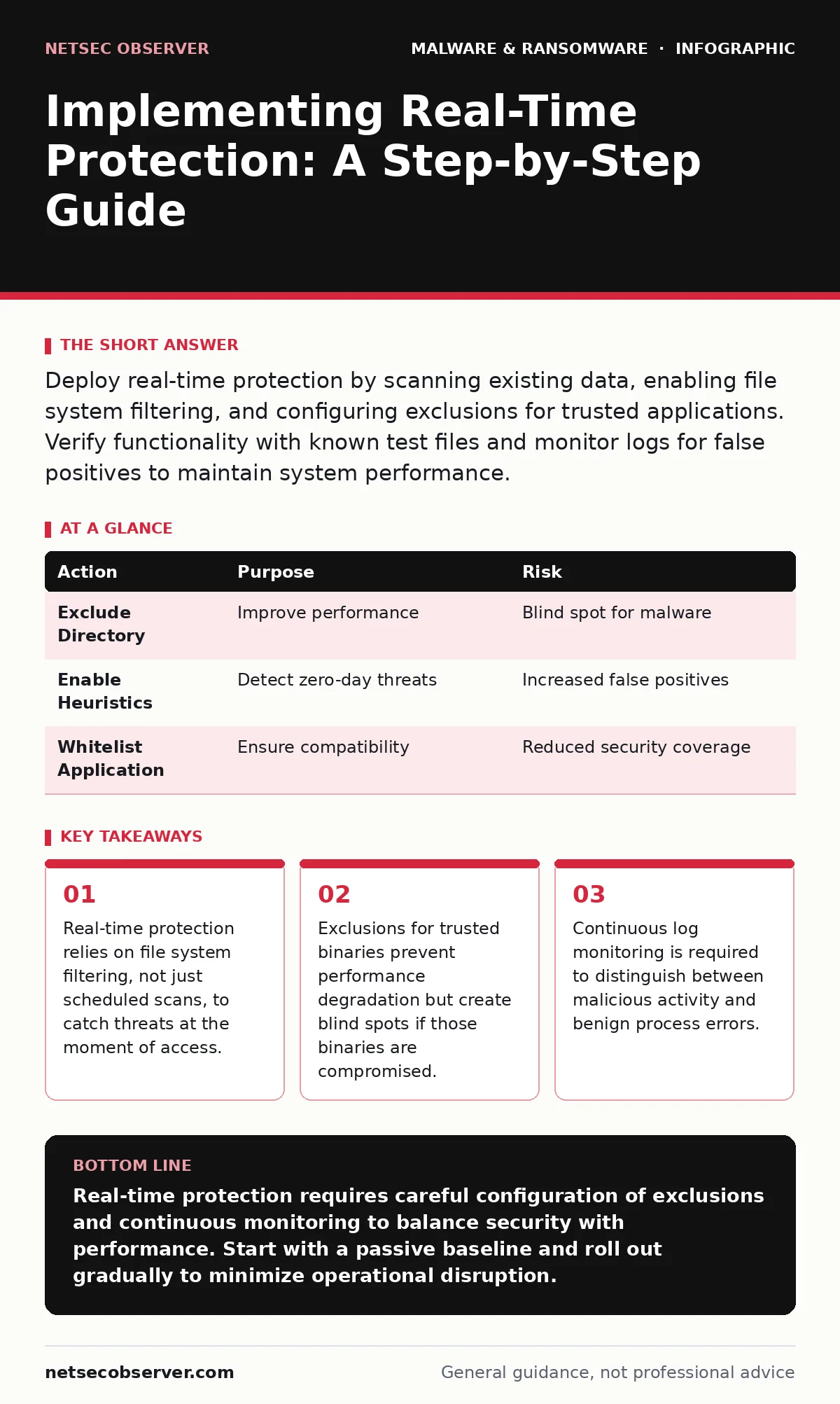
Deploy real-time protection by scanning existing data, enabling file system filtering, and configuring exclusions for trusted applications. Verify functionality with known test files and monitor logs for false positives to maintain system performance.
Defining the Scope of Real-Time Defense
Real-time protection differs from traditional antivirus scanning because it intercepts file activity as it happens rather than waiting for a scheduled job. This mechanism uses a kernel-mode driver to inspect read and write operations before the operating system processes them. You must understand that this interception introduces latency, which can slow down file transfers and application launches if configured incorrectly.
The goal is to block malicious code execution before it establishes persistence. Persistence refers to techniques malware uses to remain on a system after a reboot. By intercepting the initial write or execute command, you stop the chain of attack early. However, this power comes with the risk of blocking legitimate software, known as a false positive.
Preparing the Environment for Deployment
Before installing any agent, you must map your environment to avoid operational disruptions. Identify critical business applications that perform heavy disk I/O, such as database servers or virtualization hosts. These systems generate thousands of file operations per second, which can overwhelm a naive security filter.
Create a list of trusted directories and executables that must never be scanned in real-time. This list should include system folders and verified application binaries. If you scan these paths, you will introduce unacceptable latency. Refer to our guide on Linux malware for specific considerations regarding open-source environments, as the file system structure differs significantly from Windows.
Step 1: Install the Agent in Passive Mode
Install the security agent on a subset of endpoints before enabling active protection. Passive mode allows the agent to collect telemetry and baseline normal behavior without blocking any activity. This phase is critical for understanding the unique traffic patterns of your network.
During this phase, the agent observes which files are accessed, how often, and by which processes. It builds a reputation database for local binaries. You should run this phase for at least several days to capture variations in user behavior. If you skip this step, the agent will lack the context needed to distinguish between normal and anomalous activity.
Verification of Passive Installation
Check the agent logs to ensure data is flowing to the management console. Verify that no alerts are triggered for routine administrative tasks. If you see alerts for standard system updates, the agent is not yet calibrated to your environment. Adjust the sensitivity settings only after the baseline is established.
Step 2: Enable File System Filtering
Once the baseline is stable, enable file system filtering on the pilot group. This feature hooks into the operating system’s I/O manager to inspect every file read and write operation. It checks the file against known signatures and behavioral heuristics.
Heuristics analyze the structure and behavior of a file to detect potential threats, even if no signature exists. This method catches zero-day malware, which is software that has not been previously identified by security vendors. Enable this feature gradually, starting with non-critical workstations. Monitor system performance closely during this transition.
Verification of Filtering Activation
Attempt to execute a known benign file and verify that it opens without delay. Then, use a test file to simulate a malicious action, such as creating a new process from a temporary directory. The agent should block this action and log the event. If the block does not occur, check the driver status and ensure the service is running.
Step 3: Configure Exclusions and Allow Lists
Exclusions are necessary to prevent false positives and maintain performance. Add trusted application directories to the exclusion list, but do so with extreme caution. An excluded directory is invisible to the security agent, meaning malware dropped there will not be detected.
Only exclude directories that are strictly controlled and updated through verified channels. For example, you might exclude a specific software installation folder if the vendor provides cryptographic verification. Never exclude user download folders or temporary directories. Review the exclusion list regularly to remove entries for software that is no longer in use.
Verification of Exclusion Accuracy
Test the exclusions by attempting to run a test file from an excluded path. The agent should not inspect or block this file. Then, move the same file to a non-excluded path and verify that the agent detects it. This confirms that the exclusion is precise and not overly broad.
See also: XDR Misconceptions: Why Extended Detection and Response Fails Without Context · Malicious Documents: 7 Setup Mistakes That Open You to Exploits
Step 4: Roll Out to the Entire Organization
After validating the configuration on the pilot group, deploy the agent to the rest of the organization. Use a phased approach, deploying to different departments or locations in stages. This allows you to isolate and resolve issues before they affect the entire network.
Communicate the changes to users, explaining that they may see brief delays when opening large files. Provide a clear channel for reporting issues, such as applications failing to launch. Monitor the management console for spikes in alerts or performance issues during each phase.
Verification of Full Deployment
Ensure that all endpoints report their status to the management console. Verify that no critical systems are missing from the deployment. Check the alert queue for any unusual patterns that might indicate a widespread configuration error.
Checking Effectiveness and Ongoing Upkeep
Real-time protection is not a set-and-forget solution. You must regularly review logs to identify trends and adjust configurations. Look for repeated false positives, which indicate that legitimate software is being misidentified. Update the exclusion list or adjust heuristic sensitivity as needed.
Integrate real-time protection with other security layers. For example, combine it with network monitoring to detect lateral movement. Refer to our guide on ransomware recovery plans to ensure that your protection strategy aligns with your incident response procedures. Regularly test your detection capabilities using controlled simulation tools.
Handling False Positives and Performance Issues
False positives occur when the agent blocks legitimate software. This can disrupt business operations and erode user trust. When a false positive occurs, investigate the root cause. Determine if the software is genuinely safe or if it exhibits suspicious behavior.
If the software is safe, add it to the allow list. If it exhibits suspicious behavior, such as injecting code into other processes, consider replacing it with a safer alternative. Monitor the performance impact of the agent, particularly on systems with limited resources. Adjust scan intervals and heuristic levels to balance security and performance.
| Action | Purpose | Risk |
|---|---|---|
| Exclude Directory | Improve performance | Blind spot for malware |
| Enable Heuristics | Detect zero-day threats | Increased false positives |
| Whitelist Application | Ensure compatibility | Reduced security coverage |
Key takeaways
- Real-time protection relies on file system filtering, not just scheduled scans, to catch threats at the moment of access.
- Exclusions for trusted binaries prevent performance degradation but create blind spots if those binaries are compromised.
- Continuous log monitoring is required to distinguish between malicious activity and benign process errors.
Real-time protection requires careful configuration of exclusions and continuous monitoring to balance security with performance. Start with a passive baseline and roll out gradually to minimize operational disruption.
Frequently asked questions
How do I know if real-time protection is slowing down my system?
Monitor system performance metrics, particularly disk I/O latency and application launch times. Compare these metrics before and after enabling real-time protection to identify any degradation.
Can real-time protection stop ransomware?
It can block ransomware execution if the file is known or exhibits suspicious behavior. However, sophisticated ransomware may evade detection, so you should also maintain offline backups and refer to **ransomware recovery plans**.
What is the difference between real-time and on-demand scanning?
Real-time protection monitors file activity as it occurs, while on-demand scanning checks files at scheduled intervals or on user request. Real-time provides immediate defense, while on-demand catches threats that may have been missed.
How often should I review my exclusion lists?
Review exclusion lists quarterly or whenever you install or remove major software. Ensure that excluded directories are still necessary and that no new threats have emerged that could exploit those exclusions.
How this guide was produced: written by the NetSec Observer editorial team with AI assistance, checked against the public references listed below, and reviewed when the facts change. See our editorial policy or report an error.