Malicious Documents: 7 Setup Mistakes That Open You to Exploits
Most document infections succeed because default software settings treat embedded scripts and external links as trusted by default.
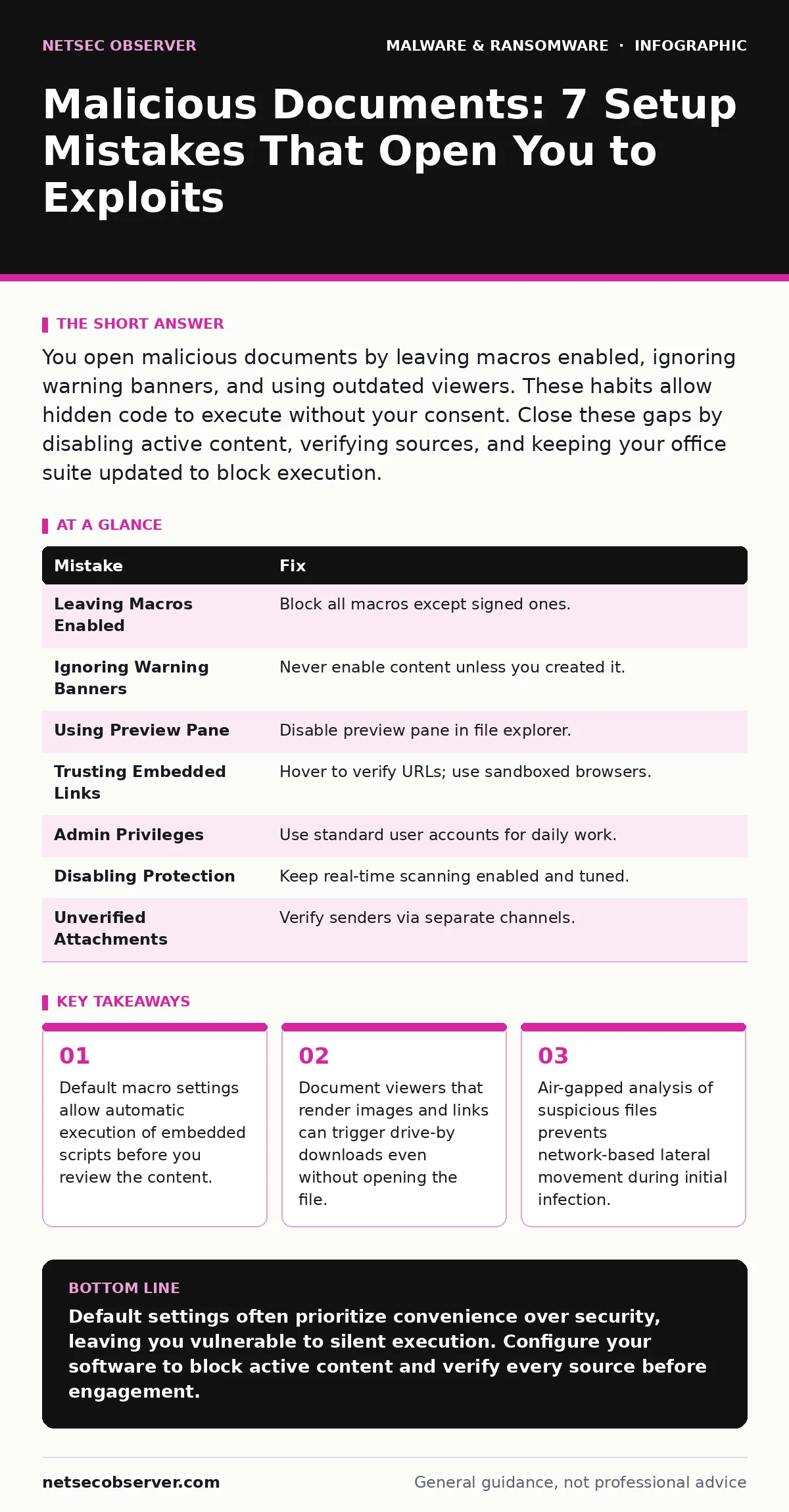
You open malicious documents by leaving macros enabled, ignoring warning banners, and using outdated viewers. These habits allow hidden code to execute without your consent. Close these gaps by disabling active content, verifying sources, and keeping your office suite updated to block execution.
Mistake 1: Leaving Macros Enabled by Default
Modern office suites allow documents to contain macros, which are small programs written in languages like Visual Basic for Applications. By default, many installations trust macros from known sources or prompt users to enable them. Attackers embed malicious macros in invoices or resumes to bypass initial scrutiny.
Why it hurts:
When you enable macros, the document executes its code immediately. This code can download additional payloads, encrypt your files, or steal credentials. The macro runs with the same permissions as your user account, granting it access to your local files and network drives.
The fix:
Disable all macros at the application level. Configure your office software to block all macros except those digitally signed by a trusted publisher you explicitly manage. Review our guide on macro security settings to harden your configuration. This stops the initial execution vector before any code runs.
Mistake 2: Ignoring the Yellow Warning Banner
Office applications display a yellow banner above the editing area when a document contains active content. This banner warns that the document may contain harmful elements. Users often dismiss this warning because they recognize the file name or the sender.
Why it hurts:
Clicking "Enable Content" on the banner executes the embedded script. Attackers design these banners to look benign or hide them behind complex formatting. Once enabled, the macro has full control over the application and can inject code into other open documents or the operating system.
The fix:
Never click "Enable Content" unless you created the macro yourself or trust the digital signature. Treat the banner as a hard stop. If the document requires macros to function, request a sanitized version from the sender. Relying on antivirus software to catch the macro after execution is a reactive measure that fails often.
Mistake 3: Using Preview Pane in File Explorers
File explorers often show a preview of documents in a side pane when you hover over a file. This feature renders the document content so you can read it without opening the file. Attackers place malicious documents in shared folders to exploit this automatic rendering.
Why it hurts:
The preview pane executes scripts and loads external resources just as if you had opened the file. This allows drive-by downloads where malware installs simply by hovering over the icon. You do not need to double-click the file to become infected. The preview engine acts as a full execution environment.
The fix:
Disable the preview pane in your file explorer settings. Configure the system to show only file icons and names. This forces you to actively open a file, adding a deliberate step that breaks automated infection chains. This simple change removes a silent infection vector that many users overlook.
Mistake 4: Trusting Embedded Links Without Verification
Documents often contain hyperlinks to external websites, resources, or cloud storage. Attackers shorten these links or mask the true destination to make them appear legitimate. Users click these links expecting to access a referenced resource or update.
Why it hurts:
Clicking a malicious link directs your browser to a site hosting exploit kits or phishing pages. These sites can exploit vulnerabilities in your browser or operating system without any document macro being involved. The link acts as a bridge from a trusted document to an untrusted external threat.
The fix:
Hover over links to reveal the true URL before clicking. Look for mismatched domains or suspicious characters. If the link does not match the expected domain, do not click it. Use a sandboxed browser for all external links clicked from documents. This isolates the risk to a disposable environment.
Mistake 5: Running Documents in Admin Privileges
Opening documents while logged in as an administrator grants the document’s embedded code elevated permissions. Standard users have limited rights that restrict what software can modify on the system. Attackers target admin accounts to gain deeper system access.
Why it hurts:
Elevated privileges allow malware to install drivers, modify system files, and disable security tools. A macro running as an admin can persist on the system even after you delete the document. It can also move laterally to other machines on the network using your credentials.
The fix:
Use a standard user account for daily tasks. Only elevate privileges when absolutely necessary for specific administrative tasks. Configure your system to require approval for every elevation request. This limits the damage a malicious document can do, even if it executes successfully.
See also: Macro Security Settings: 7 Mistakes That Let Malware In · Spyware Prevention Checklist: Stop Silent Data Theft
Mistake 6: Disabling Real-Time Protection for Performance
Some users disable real-time protection or antivirus software to speed up their system or avoid false positives. This creates a window where malicious files can be written to disk and executed without detection. Performance gains are minimal compared to the security risk.
Why it hurts:
Without real-time monitoring, malware executes silently. The security software may only detect the threat after it has already encrypted files or stolen data. This delay allows the attacker to establish persistence and evade removal. Your system remains vulnerable to rapid, automated attacks.
The fix:
Keep real-time protection enabled at all times. Tune exclusions carefully to avoid false positives without disabling core scanning. Review our guide on real-time protection to understand how it balances performance and security. Ensure your antivirus software is updated with the latest signatures.
Mistake 7: Opening Documents from Unverified Email Attachments
Email is a primary vector for malicious documents. Attackers spoof sender addresses to mimic colleagues or trusted services. Users open attachments because the subject line creates urgency or curiosity.
Why it hurts:
The email client may not scan attachments thoroughly, or the malware may be newly created and unknown to scanners. Opening the attachment executes the payload directly. The social engineering aspect bypasses technical controls by exploiting human trust.
The fix:
Verify the sender through a separate communication channel before opening attachments. If the email is unexpected, contact the sender directly. Do not rely on the email header alone. Use email filtering solutions that flag suspicious attachments. Keep your operating system and office suite patched to mitigate known vulnerabilities.
| Mistake | Fix |
|---|---|
| Leaving Macros Enabled | Block all macros except signed ones. |
| Ignoring Warning Banners | Never enable content unless you created it. |
| Using Preview Pane | Disable preview pane in file explorer. |
| Trusting Embedded Links | Hover to verify URLs; use sandboxed browsers. |
| Admin Privileges | Use standard user accounts for daily work. |
| Disabling Protection | Keep real-time scanning enabled and tuned. |
| Unverified Attachments | Verify senders via separate channels. |
Key takeaways
- Default macro settings allow automatic execution of embedded scripts before you review the content.
- Document viewers that render images and links can trigger drive-by downloads even without opening the file.
- Air-gapped analysis of suspicious files prevents network-based lateral movement during initial infection.
Default settings often prioritize convenience over security, leaving you vulnerable to silent execution. Configure your software to block active content and verify every source before engagement.
Frequently asked questions
Can a PDF file contain malware?
Yes, PDF files can contain embedded scripts, executable code, and links to malicious sites. Treat PDFs with the same caution as office documents.
Does renaming a file remove embedded malware?
No, renaming a file does not alter its internal structure or remove embedded code. The malware remains active and will execute when the file is opened.
How do I know if a document has macros?
Look for file extensions like .docm or .xlsm. These formats explicitly allow macros. Standard .doc or .xlsx files should not contain executable macros.
Can antivirus software detect all malicious documents?
No, antivirus software relies on known signatures and heuristics. New or obfuscated malware may evade detection until a signature is updated. Behavioral analysis helps but is not perfect.
How this guide was produced: written by the NetSec Observer editorial team with AI assistance, checked against the public references listed below, and reviewed when the facts change. See our editorial policy or report an error.