Macro Security Settings: 7 Mistakes That Let Malware In
Most users assume default settings block macros, but modern office suites often enable them by default to preserve legacy compatibility, creating an immediate execution path for attackers.
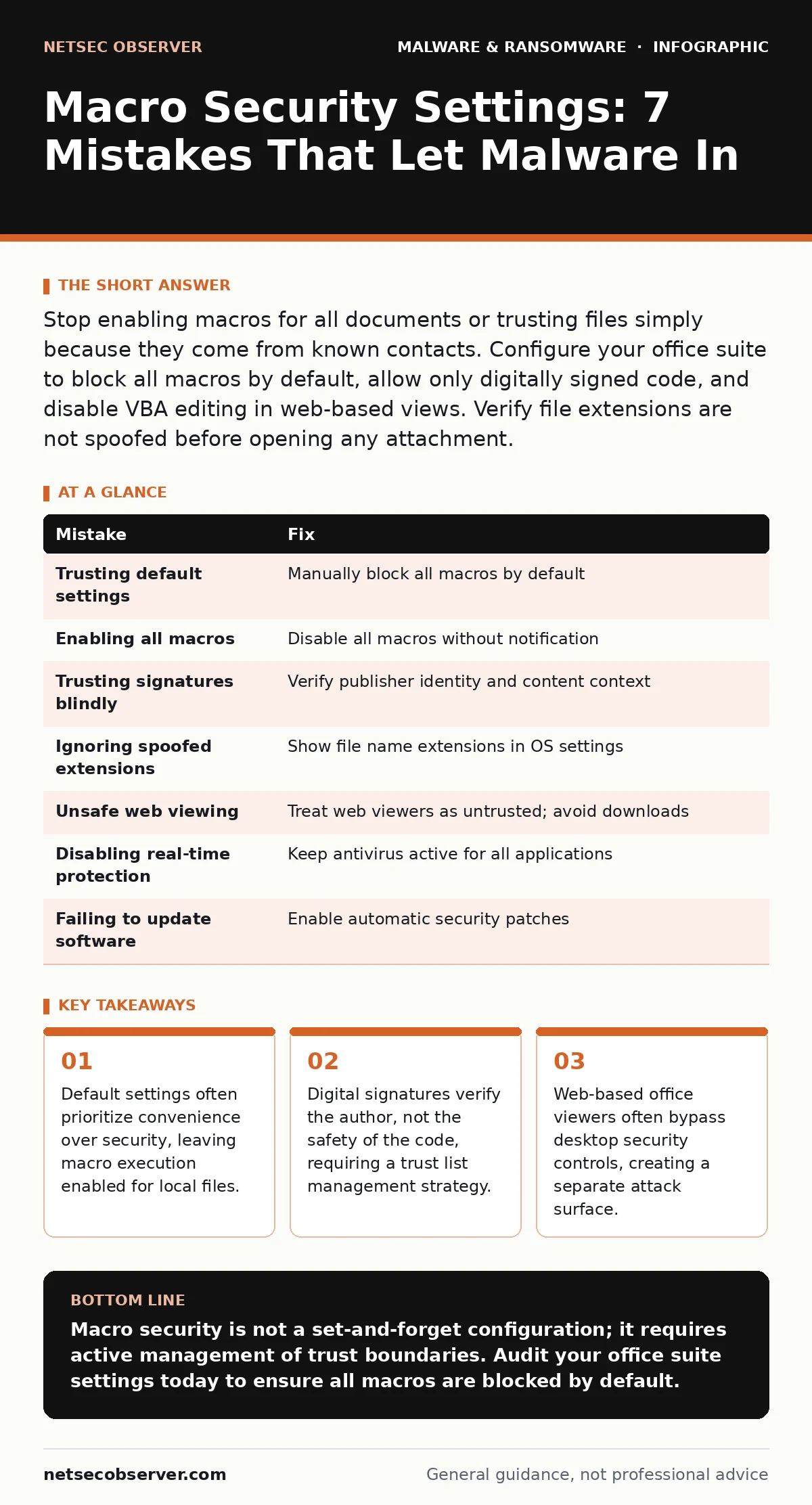
Stop enabling macros for all documents or trusting files simply because they come from known contacts. Configure your office suite to block all macros by default, allow only digitally signed code, and disable VBA editing in web-based views. Verify file extensions are not spoofed before opening any attachment.
Mistake 1: Trusting Default Security Settings
Modern office applications are designed to be compatible with decades of legacy documents. This design choice often means that macro execution is not blocked by default for files stored on your local drive. You might assume the software is secure out of the box, but it is often configured to run code if you click a single prompt.
Why it hurts: An attacker sends a PDF or Word document that appears benign. When you open it, the application prompts you to enable content. If you click enable, the macro runs immediately. This grants the attacker execution privileges on your system without needing to exploit a zero-day vulnerability in the application itself.
The fix: Manually configure your office suite to block all macros, including those from trusted locations. Do not rely on the default installation settings. Check the trust center or security preferences in your application settings. Set the macro security level to the highest possible restriction. This forces you to explicitly allow code to run, adding a friction point that stops accidental execution.
Mistake 2: Enabling Macros for All Documents
Some users disable the security prompts entirely because they find the constant warnings annoying. They change the setting to "Enable all macros" to streamline their workflow. This decision removes the final barrier between a malicious document and your operating system.
Why it hurts: Once this setting is active, every macro-enabled file you open executes its code automatically. You lose the ability to distinguish between a harmless automation script and a malicious payload. A single infected email attachment can install remote access tools or ransomware without any interaction from you other than opening the file.
The fix: Never enable all macros globally. If you work with trusted internal documents that require macros, use a separate, isolated profile or machine for that work. On your primary workstation, keep the setting at "Disable all macros without notification." This ensures that no code runs unless you have explicitly configured an exception for a specific, verified source.
Mistake 3: Trusting Digital Signatures Blindly
You may see a message stating that a document is signed by a trusted publisher and assume this means the code is safe. Digital signatures verify the identity of the signer and that the code has not been altered since signing. They do not verify that the code is benign.
Why it hurts: An attacker can compromise a legitimate company’s signing certificate or steal valid credentials. Once they have access to the private key, they can sign malicious macros that appear to come from a trusted vendor. Your security software may allow the execution because the signature is valid, bypassing your suspicion.
The fix: Treat digital signatures as an identity check, not a safety guarantee. Maintain a strict allow-list of trusted publishers. If a macro comes from a publisher you do not recognize, or if the signature is from a known vendor but the content is unexpected, treat it as suspicious. Verify the content through a secondary channel before enabling execution.
Mistake 4: Ignoring Spoofed File Extensions
Attackers often disguise macro-enabled documents as harmless files. They might name a file invoice.pdf.docm or report.xlsx.js. If your operating system is configured to hide known file extensions, you only see invoice.pdf. You assume you are opening a standard document, but you are actually launching a macro-enabled template.
Why it hurts: The deception relies on your visual confirmation of the file type. By hiding the true extension, the attacker removes your ability to make an informed decision. You open the file expecting a static document, but the application loads executable code. This is a common vector for delivering ransomware and other persistent threats.
The fix: Configure your operating system to display file name extensions for all files. In Windows, this is found in the Folder Options under the View tab. In macOS, this is in Finder preferences. Seeing the full extension allows you to spot anomalies like .docm, .xlsm, or .js attached to what looks like a standard document.
Mistake 5: Using Web-Based Office Viewers Unsafely
Many organizations use web-based document viewers to share files without installing desktop software. These web viewers often have different security models than their desktop counterparts. They may strip out macros for security, or they may render them in a sandboxed environment that is less restrictive.
Why it hurts: You might assume that because the file is opening in a browser, it cannot execute code on your machine. However, some web viewers support limited scripting or can redirect you to a malicious site that exploits browser vulnerabilities. Additionally, if the web viewer allows you to download the file to edit it locally, you may inadvertently save a macro-enabled version to your desktop.
The fix: Treat web-based document views as untrusted environments. Do not download files from these viewers to your local machine unless you have verified the source. If you must edit a file, use a dedicated virtual machine or a sandboxed environment. Ensure your browser has strong security settings enabled to prevent drive-by downloads.
See also: Malvertising Mistakes That Leave Your Browser Open to Attack · Spyware Prevention Checklist: Stop Silent Data Theft
Mistake 6: Disabling Real-Time Protection for Office Apps
To improve performance or avoid false positives, some users add their office applications to the exclusion list of their antivirus software. This allows the applications to run without interference from the security software.
Why it hurts: If a macro executes and attempts to drop a payload, the antivirus software will not scan the action because the process is excluded. This creates a blind spot where malware can operate freely. The exclusion applies to the application, meaning any code executed by that application is also ignored.
The fix: Keep real-time protection enabled for all applications. If you experience performance issues, investigate the root cause rather than disabling security features. Use application whitelisting for known, safe tools, but do not exclude the office suite itself. Ensure your security solution has specific rules for handling macro-enabled documents.
Mistake 7: Failing to Update Office Applications
Older versions of office suites may have known vulnerabilities in how they handle macro execution. Attackers exploit these flaws to bypass security controls. If you do not update your software, you remain vulnerable to techniques that have been patched for years.
Why it hurts: An attacker can use a known exploit to force macro execution even if your settings are correct. This bypasses the user prompt entirely. The code runs silently in the background. Your security settings are rendered useless because the application itself is compromised.
The fix: Enable automatic updates for your office suite. Ensure that critical security patches are installed as soon as they are released. Do not delay updates for convenience. Regular updates close known execution paths and improve the application’s ability to detect and block malicious code.
| Mistake | Fix |
|---|---|
| Trusting default settings | Manually block all macros by default |
| Enabling all macros | Disable all macros without notification |
| Trusting signatures blindly | Verify publisher identity and content context |
| Ignoring spoofed extensions | Show file name extensions in OS settings |
| Unsafe web viewing | Treat web viewers as untrusted; avoid downloads |
| Disabling real-time protection | Keep antivirus active for all applications |
| Failing to update software | Enable automatic security patches |
Key takeaways
- Default settings often prioritize convenience over security, leaving macro execution enabled for local files.
- Digital signatures verify the author, not the safety of the code, requiring a trust list management strategy.
- Web-based office viewers often bypass desktop security controls, creating a separate attack surface.
Macro security is not a set-and-forget configuration; it requires active management of trust boundaries. Audit your office suite settings today to ensure all macros are blocked by default.
Frequently asked questions
Are macros always malicious?
No, macros are automation tools that can improve productivity, but they are frequently abused by attackers to deliver malware because they execute code with user privileges.
Can I use macros safely?
You can use them safely by maintaining a strict allow-list of trusted publishers and only enabling macros for files from verified sources in isolated environments.
Does disabling macros break my documents?
Disabling macros prevents automation from running, but it does not corrupt the document. The data remains intact, and you can still view and edit text and images.
What is the difference between .docx and .docm?
The .docx extension indicates a standard Word document without macros, while .docm indicates a macro-enabled Word document that can contain executable code.
How this guide was produced: written by the NetSec Observer editorial team with AI assistance, checked against the public references listed below, and reviewed when the facts change. See our editorial policy or report an error.