
Malvertising Mistakes That Leave Your Browser Open to Attack
Ad networks often serve malicious code through legitimate inventory, meaning your browser executes threats before you even click a banner or video player.
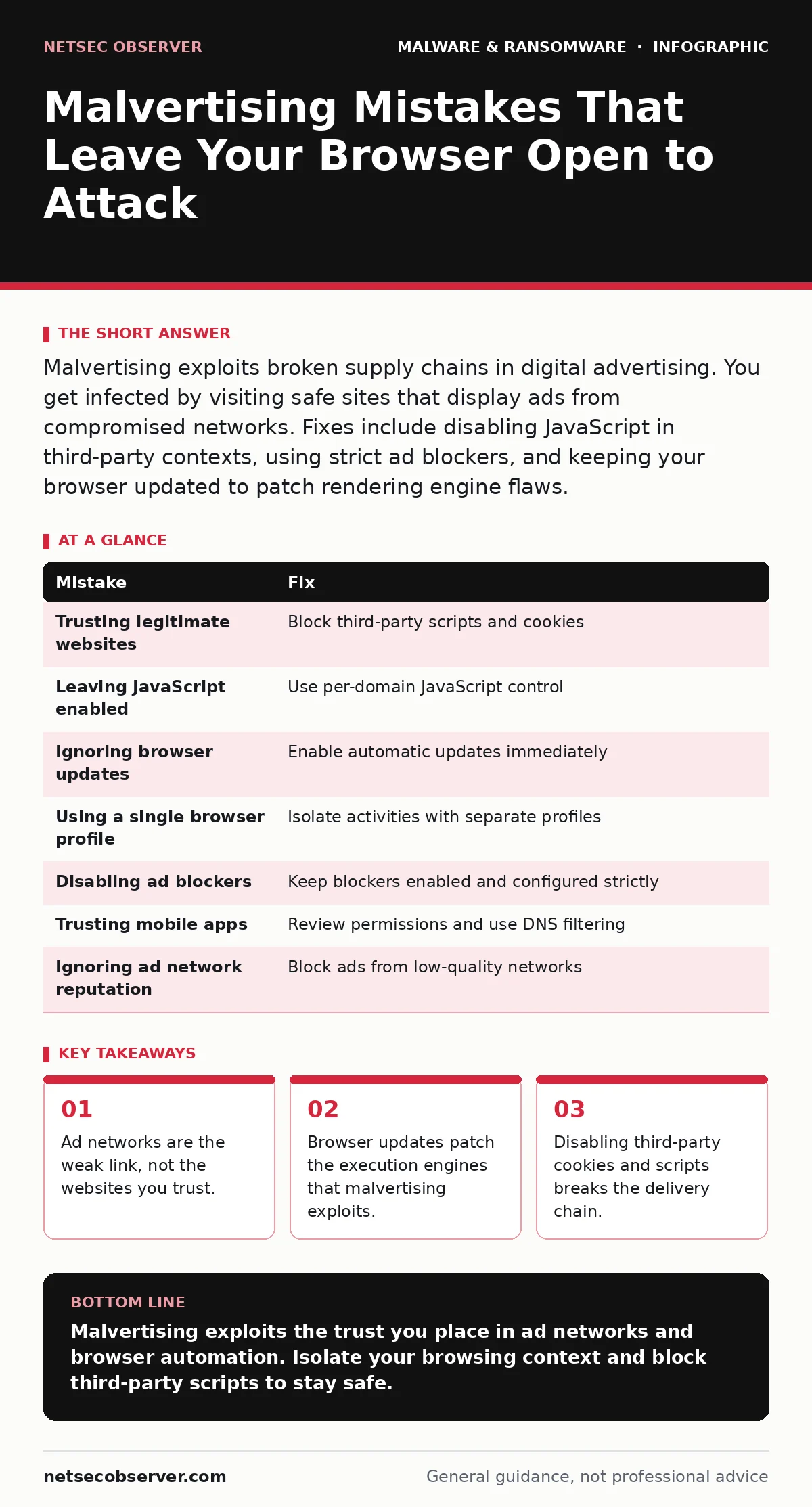
Malvertising exploits broken supply chains in digital advertising. You get infected by visiting safe sites that display ads from compromised networks. Fixes include disabling JavaScript in third-party contexts, using strict ad blockers, and keeping your browser updated to patch rendering engine flaws.
Mistake 1: Trusting Legitimate Websites Blindly
You assume that visiting a major news outlet or sports site is safe. Malvertising hijacks the advertising inventory of these trusted domains. Attackers bid on ad slots through legitimate exchanges. The site displays the ad. The ad loads a script from a malicious server. You receive the payload without ever clicking anything.
Why it hurts: Your trust in the host site lowers your guard. The malware executes within the context of a reputable domain. Security tools often whitelist these domains. This bypasses perimeter defenses that rely on reputation scoring.
The fix: Treat all third-party content as untrusted. Configure your browser to block third-party cookies and scripts. Use a strict ad blocker that filters network requests, not just visual elements. This prevents the initial connection to the malicious ad server. See our guide on removing malware from a Mac if you suspect an infection has already occurred.
Mistake 2: Leaving JavaScript Enabled Everywhere
JavaScript is the primary vector for malvertising. The malicious code arrives as a script tag or an inline event handler. It runs immediately when the page loads. It may redirect you to a drive-by download site. It may exploit a vulnerability in your browser’s JavaScript engine. Disabling JavaScript globally is impractical. It breaks modern web functionality.
Why it hurts: You give execution rights to code you did not request. The script runs in your browser’s sandbox. If the sandbox has a flaw, the script escapes. It gains access to your file system or network. The attack happens in milliseconds.
The fix: Use a browser extension that allows JavaScript only on specific trusted domains. Block it on all other sites. This reduces the attack surface significantly. Most ads rely on JavaScript to function. Without it, the malicious payload cannot execute. This approach balances usability with security.
Mistake 3: Ignoring Browser Updates
Browser vendors release patches for rendering engine flaws frequently. Malvertising campaigns often target known vulnerabilities that have not yet been patched. These are called zero-day or N-day exploits. Your browser version determines your exposure. An outdated browser lacks the security fixes for recent attack methods.
Why it hurts: You remain vulnerable to exploits that were already solved. Attackers scan for specific user-agent strings. They serve malicious ads only to users with known vulnerable versions. This makes the attack highly targeted and effective.
The fix: Enable automatic updates for your browser and its plugins. Do not delay updates for convenience. A patched browser closes the door to drive-by downloads. It forces attackers to find new, unpatched flaws. This raises the cost of the attack.
Mistake 4: Using a Single Browser Profile
You use one browser profile for everything. You check email, read news, and shop online in the same session. If an ad on a news site serves malware, it has access to all your cookies and cached credentials. The compromise spreads across all your activities.
Why it hurts: The breach of one context compromises all contexts. Malware can access session tokens for banking or email. It can harvest stored passwords. The lateral movement happens within your browser. There is no containment.
The fix: Use separate browser profiles for different activities. Create one profile for browsing and reading news. Create another for banking and email. Use different extensions for each. If the browsing profile is compromised, the banking profile remains isolated. This limits the blast radius. Check our guide on Linux malware for similar isolation strategies on other operating systems.
Mistake 5: Disabling Ad Blockers for Convenience
You disable ad blockers to support publishers or view video content. This removes the primary filter against malicious ads. Ad blockers maintain blocklists of known malicious domains and patterns. They inspect network requests before they reach your browser. Disabling them exposes you to the raw ad inventory.
Why it hurts: You lose the first line of defense. Malvertising relies on stealth. It hides within legitimate ad networks. Without a blocker, your browser makes the network request. The malicious server responds with code. You have no chance to stop it.
The fix: Keep an ad blocker enabled at all times. Configure it to allow ads only on specific whitelisted sites if necessary. Do not disable it globally. Use a blocker that filters by domain reputation and script behavior. This catches new threats that are not yet on static blocklists.
See also: Malicious Documents: 7 Setup Mistakes That Open You to Exploits · 7 Mistakes That Let Malicious Email Attachments Bypass Your Defenses
Mistake 6: Trusting Mobile App Stores Implicitly
Mobile apps often contain embedded ad networks. These networks serve ads within the app interface. Malvertising on mobile works similarly to desktop. Compromised ad servers serve malicious code. The app executes this code. It may install additional apps or steal data.
Why it hurts: Mobile operating systems have stricter sandboxing. However, ad frameworks can bypass some restrictions. They may prompt for permissions that seem legitimate. Users grant these permissions to view content. The malware gains deeper access.
The fix: Review app permissions carefully. Deny access to contacts, location, or storage if the app does not need it. Use an ad blocker that works at the DNS level for mobile devices. This blocks requests to malicious ad servers before they reach the app. See our guide on keyloggers to understand how permission abuse leads to data theft.
Mistake 7: Failing to Validate Ad Network Reputation
You assume that all ad networks are vetted. Many networks prioritize speed and volume over security. They allow low-quality advertisers. These advertisers may serve malicious ads. The network does not scan every creative. They rely on automated filters that miss sophisticated attacks.
Why it hurts: You are exposed to the lowest common denominator of security. The ad network’s lax standards become your risk. You cannot control who buys ad space. You can only control what reaches your browser.
The fix: Use tools that inspect ad network reputation. Some browser extensions block ads from known low-quality networks. This reduces the chance of encountering malvertising. It is a proactive measure. It filters out the most dangerous sources before they load.
| Mistake | Fix |
|---|---|
| Trusting legitimate websites | Block third-party scripts and cookies |
| Leaving JavaScript enabled | Use per-domain JavaScript control |
| Ignoring browser updates | Enable automatic updates immediately |
| Using a single browser profile | Isolate activities with separate profiles |
| Disabling ad blockers | Keep blockers enabled and configured strictly |
| Trusting mobile apps | Review permissions and use DNS filtering |
| Ignoring ad network reputation | Block ads from low-quality networks |
Key takeaways
- Ad networks are the weak link, not the websites you trust.
- Browser updates patch the execution engines that malvertising exploits.
- Disabling third-party cookies and scripts breaks the delivery chain.
Malvertising exploits the trust you place in ad networks and browser automation. Isolate your browsing context and block third-party scripts to stay safe.
Frequently asked questions
Can malvertising infect my device without me clicking anything?
Yes, drive-by downloads execute code automatically when the page loads, exploiting browser vulnerabilities without user interaction.
Does using a VPN stop malvertising?
A VPN hides your location but does not filter malicious content. You still execute the code unless you use browser-level blocking.
How do I know if I have been infected by malvertising?
Look for unexpected pop-ups, browser redirects, or slow performance. Run a scan with your security software.
Is malvertising common on mobile devices?
Yes, mobile apps use ad networks that can serve malicious code, often requesting excessive permissions to function.
How this guide was produced: written by the NetSec Observer editorial team with AI assistance, checked against the public references listed below, and reviewed when the facts change. See our editorial policy or report an error.