
Stop Adware Infection: Prevention Tactics That Actually Work
Most adware installs because you clicked a button, not because a hacker broke in, so blocking the click matters more than blocking the code.
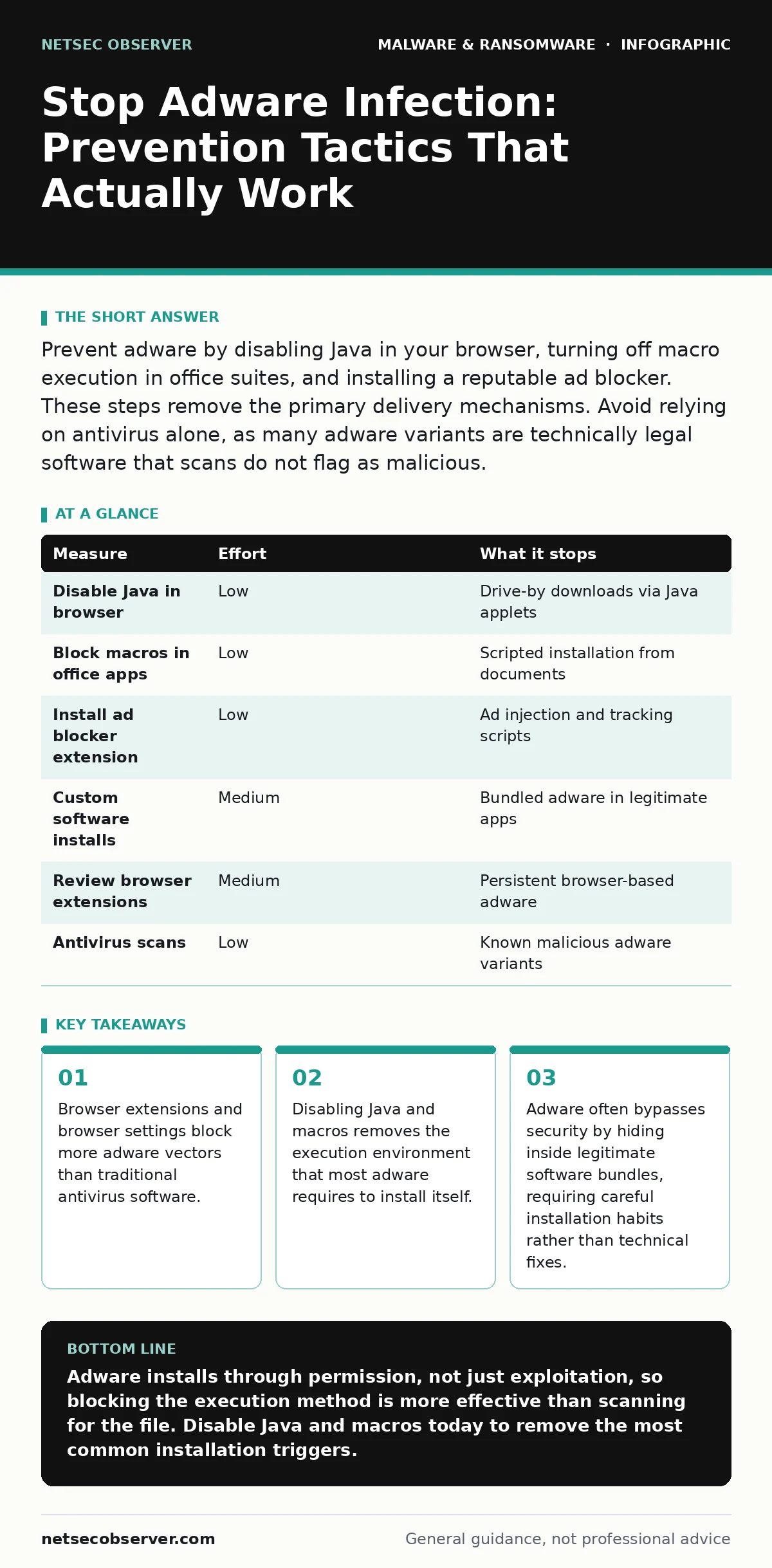
Prevent adware by disabling Java in your browser, turning off macro execution in office suites, and installing a reputable ad blocker. These steps remove the primary delivery mechanisms. Avoid relying on antivirus alone, as many adware variants are technically legal software that scans do not flag as malicious.
The Click Is the Vulnerability
Adware rarely exploits a kernel vulnerability or a memory corruption bug. It relies on your cooperation. You click "Install," you click "Accept," or you click a misleading button that looks like a close icon. This distinction changes how you defend yourself. If the threat requires a code exploit, you patch the system. If the threat requires your permission, you must change your behavior and your interface.
Most adware arrives through drive-by downloads or bundled software. A drive-by download occurs when a webpage automatically sends a file to your device, often triggered by a script. Bundled software hides adware inside the installer for a program you actually want. Both methods depend on you allowing the action or failing to notice the extra checkboxes.
Disable the Execution Engines
The most effective technical control is to remove the tools adware uses to run. Java is a classic example. While Java powers some enterprise applications, it is rarely needed for standard web browsing. Yet, it remains a primary target because it can execute code directly on your machine. If you do not have a specific work requirement for Java applets, uninstall the runtime and disable the browser plugin.
Macros in office documents are another major vector. Macros are small scripts embedded in Word or Excel files that automate tasks. Attackers use them to download and install adware or ransomware. The default settings in modern office suites often prompt you to enable them. Change this setting to always block macros from the internet. This stops the script before it can even ask for permission.
Harden the Browser Interface
Your browser is the front door. If you leave it wide open, adware flows in. The first layer of defense is a content blocker. These extensions prevent the browser from loading scripts and images from known advertising networks. This stops the ad from rendering, which often stops the associated tracking or installation attempt.
However, content blockers are not perfect. They can be bypassed by cleverly coded scripts or by ads that mimic legitimate content. This is where manual vigilance enters. You must look closely at installation wizards. When installing any free software, choose the "Custom" or "Advanced" installation option. This reveals optional checkboxes that bundle adware, toolbars, or search engine changes. Uncheck everything that is not the core software you requested.
Manage Extensions and Plugins
Browser extensions have deep access to your browsing data. A malicious extension can inject ads into every page you visit, redirect your searches, and track your behavior. This is often harder to detect than a downloaded file because the code lives inside the browser itself.
Review your installed extensions regularly. Remove any extension you do not recognize or no longer use. Be wary of extensions that promise to boost performance, clean files, or manage passwords if they are not from well-known developers. These categories are favorite hiding spots for adware. If an extension asks for broad permissions, such as access to all website data, consider whether you truly need that level of access.
The Limits of Firewalls and Antivirus
Traditional security tools have blind spots when it comes to adware. A firewall controls network traffic. It can block an adware program from phoning home to its server, but it cannot stop the program from installing in the first place. Once the adware is on your disk, the firewall is less useful unless you configure specific outbound rules, which is complex for most users.
Antivirus software scans for known bad patterns. As mentioned, adware often lacks these patterns. Some adware is even signed with valid digital certificates, making it appear trustworthy to security software. This is why behavioral prevention, such as blocking the installation mechanism, is superior to detection after the fact. For deeper insights on how attackers hide their code, see our guide on malware analysis.
See also: Antivirus Software Explained: How Detection Actually Works · XDR Misconceptions: Why Extended Detection and Response Fails Without Context
Summary of Prevention Measures
The table below ranks measures by the amount of risk they remove. The top items are quick wins that address the most common entry points.
| Measure | Effort | What it stops |
|---|---|---|
| Disable Java in browser | Low | Drive-by downloads via Java applets |
| Block macros in office apps | Low | Scripted installation from documents |
| Install ad blocker extension | Low | Ad injection and tracking scripts |
| Custom software installs | Medium | Bundled adware in legitimate apps |
| Review browser extensions | Medium | Persistent browser-based adware |
| Antivirus scans | Low | Known malicious adware variants |
What Does Not Work
Some popular advice is ineffective against modern adware. Using a generic "security suite" that claims to protect you from all online threats is often a waste. These suites can be bloated and may even contain adware themselves. They create a false sense of security that leads to riskier behavior.
Another myth is that using a specific browser makes you safe. No browser is immune to social engineering. If you click the wrong button in Chrome, Firefox, or Safari, you can still install adware. The browser is just the interface; the vulnerability is the user action. For users who want to reduce their attack surface further, switching to a more secure operating environment like Linux malware resistant setups can help, but it does not eliminate the need for caution.
Closing Checklist
You do not need to overhaul your entire digital life to reduce adware risk. Start with these three actions today. They address the highest-probability entry points with minimal effort.
- Disable Java in your browser settings and uninstall the runtime if unused.
- Install a reputable ad blocker extension and verify it is active on all sites.
- Change your office suite settings to block macros from the internet by default.
These steps remove the execution environment for most adware. They stop the code before it can run. You can explore more advanced techniques, such as dynamic malware analysis, if you want to understand how these threats behave, but for prevention, simplicity is key.
Key takeaways
- Browser extensions and browser settings block more adware vectors than traditional antivirus software.
- Disabling Java and macros removes the execution environment that most adware requires to install itself.
- Adware often bypasses security by hiding inside legitimate software bundles, requiring careful installation habits rather than technical fixes.
Adware installs through permission, not just exploitation, so blocking the execution method is more effective than scanning for the file. Disable Java and macros today to remove the most common installation triggers.
Frequently asked questions
Can adware steal my passwords?
Some adware includes keylogging capabilities that record every keystroke. This allows it to capture passwords, credit card numbers, and other sensitive data. Blocking the adware prevents this data collection.
Is adware the same as a virus?
No. A virus replicates itself and spreads to other files. Adware does not replicate. Its primary purpose is to display advertisements or gather data. It is annoying and intrusive, but it behaves differently than a traditional virus.
Does using private browsing mode stop adware?
Private browsing only prevents the browser from saving your history and cookies locally. It does not block scripts from running or installing software. You can still download and install adware while in private mode.
How do I know if I have adware?
Signs include unexpected pop-up windows, a changed homepage, new toolbars in your browser, or slow performance. If your browser redirects to strange search engines, you likely have an adware extension installed.
How this guide was produced: written by the NetSec Observer editorial team with AI assistance, checked against the public references listed below, and reviewed when the facts change. See our editorial policy or report an error.