
Remove Mac Malware: A Step-by-Step Cleanup Without Reinstalling
Most Mac infections hide in user folders rather than system cores, meaning you can often clean the machine without wiping your hard drive or losing personal files.
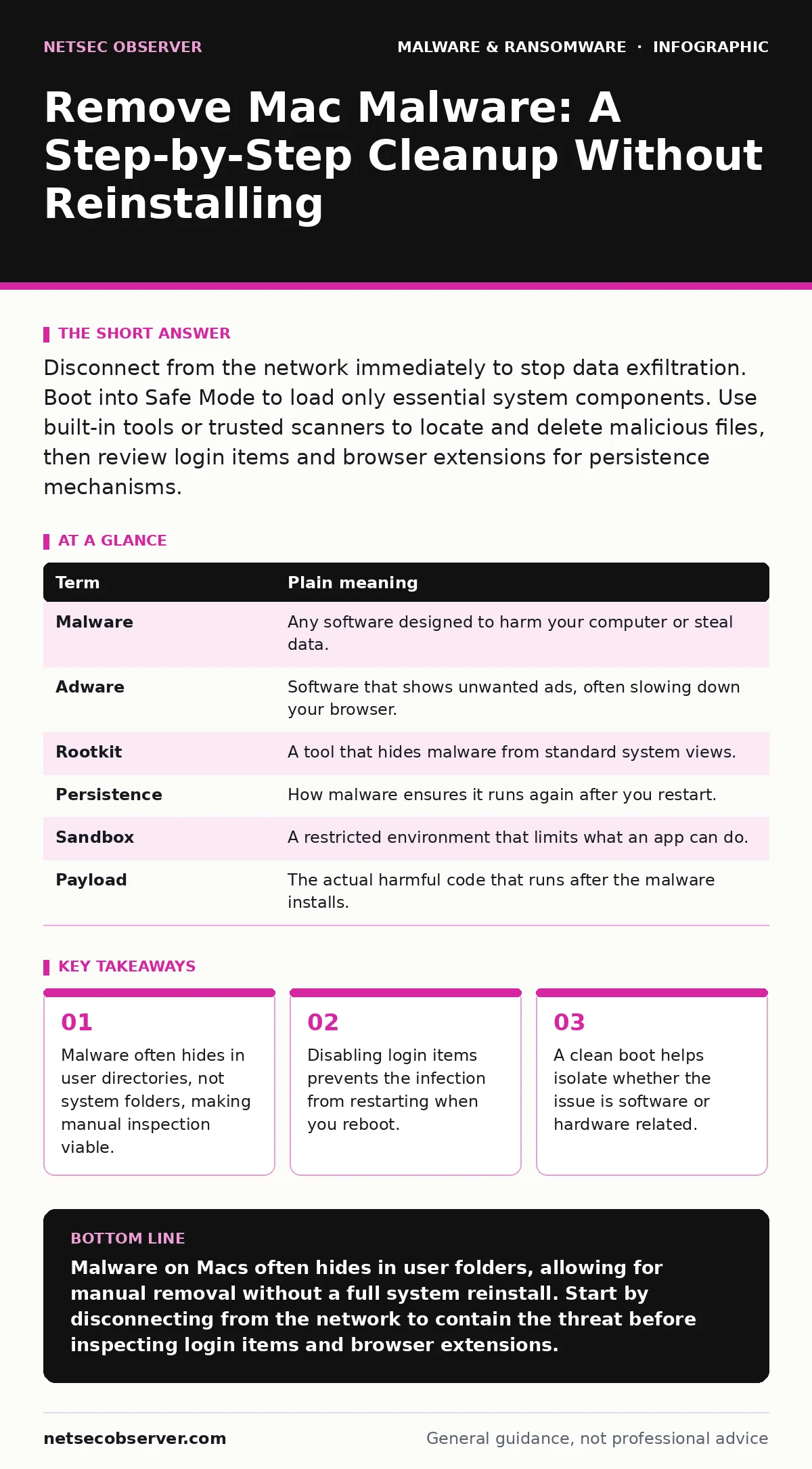
Disconnect from the network immediately to stop data exfiltration. Boot into Safe Mode to load only essential system components. Use built-in tools or trusted scanners to locate and delete malicious files, then review login items and browser extensions for persistence mechanisms.
The House Guest Analogy
Imagine your Mac is a house. You invite friends in, but one guest decides to stay after the party ends. They do not break down the front door. Instead, they hide in the closet and use your Wi-Fi. You do not need to burn the house down to remove them. You just need to find where they are hiding and ask them to leave. If they refuse, you change the locks. This analogy explains why you rarely need to reinstall macOS. The operating system itself is usually clean. The problem is the guest living in your personal space.
Malware on macOS often behaves like this uninvited guest. It relies on permissions you granted when installing legitimate software. It does not always need deep system access to cause harm. It just needs to run every time you start your computer. Understanding this helps you target the cleanup efforts effectively. You are not fighting the foundation of the house. You are clearing out the clutter in the rooms.
Key Terms You Need to Know
Before you start removing files, you must understand what you are looking for. Security jargon can be confusing. Here is a plain language translation of the terms you will encounter during a cleanup.
| Term | Plain meaning |
|---|---|
| Malware | Any software designed to harm your computer or steal data. |
| Adware | Software that shows unwanted ads, often slowing down your browser. |
| Rootkit | A tool that hides malware from standard system views. |
| Persistence | How malware ensures it runs again after you restart. |
| Sandbox | A restricted environment that limits what an app can do. |
| Payload | The actual harmful code that runs after the malware installs. |
Understanding these terms helps you read error messages and scan results. It also helps you decide which files are safe to delete. Not every unfamiliar file is dangerous. Context matters when you are cleaning up.
The First Practical Step: Isolate
The first thing you must do is cut off the malware’s connection to the outside world. Imagine asking the house guest to stop using your phone while you figure out what to do. Disconnect your Mac from Wi-Fi and Ethernet. This stops the malware from sending your data to a remote server. It also prevents it from downloading more harmful tools.
This step is critical because many modern threats are modular. The initial infection might be small. It acts as a downloader for larger payloads. By disconnecting, you limit the damage to what is already on your disk. You buy yourself time to investigate without the threat evolving. Do not skip this step. It is the difference between a contained issue and a full breach.
Inspect for Persistence Mechanisms
Malware wants to stay. It achieves this by adding itself to your startup items. Think of this as the guest hiding a key under the mat so they can get back in. On macOS, check your User & Groups settings. Look for items in the Login Items section. Remove anything you do not recognize or do not need.
Also check your browser extensions. Adware and tracking scripts often live here. They are easier to remove than system-level malware. Go to your browser settings and review each extension. If you do not remember installing it, remove it. This step often resolves performance issues without needing complex tools. It is a low-effort, high-reward action.
Scan and Remove Files
Now you need to find the malicious files. Use a reputable security tool to scan your system. While macOS has built-in protections, they are not always enough for sophisticated threats. Real-time protection can catch new threats, but it might miss older ones. You need a deep scan.
Look for files in your Library folder. Specifically, check the Application Support and LaunchAgents directories. These are common hiding spots. If you find a file with a strange name or from an unknown developer, move it to the Trash. Empty the Trash afterward. Do not just delete the icon. You must remove the actual file data.
See also: XDR Misconceptions: Why Extended Detection and Response Fails Without Context · Malicious Documents: 7 Setup Mistakes That Open You to Exploits
Verify and Harden
After removal, verify that the threat is gone. Reboot your Mac normally. Check if the symptoms return. If the computer runs smoothly, you likely succeeded. If not, the malware may have a rootkit component. This is harder to remove and may require professional help.
To prevent future infections, review your security habits. Be careful with macro security settings in documents. Enable Gatekeeper to block unsigned apps. Consider setting up ransomware recovery plans for your data. Understanding Linux malware can also help if you use development tools. The goal is to make your house less inviting to unwanted guests.
When to Reinstall
Sometimes the guest has damaged the house too much. If you cannot find the source of the problem, or if the system remains unstable, reinstall macOS. This is like renovating the room. You lose the clutter, but you also lose the furniture. Back up your important files first. Restore them from a clean backup, not the infected machine.
Reinstalling is a last resort. It is time-consuming and disruptive. However, it guarantees a clean slate. Use this option only when other methods fail. It is better to spend a day reinstalling than weeks chasing a ghost.
Key takeaways
- Malware often hides in user directories, not system folders, making manual inspection viable.
- Disabling login items prevents the infection from restarting when you reboot.
- A clean boot helps isolate whether the issue is software or hardware related.
Malware on Macs often hides in user folders, allowing for manual removal without a full system reinstall. Start by disconnecting from the network to contain the threat before inspecting login items and browser extensions.
Frequently asked questions
Can I remove Mac malware without antivirus software?
Yes, you can manually remove many types of malware by checking login items, browser extensions, and user library folders. However, specialized tools are more effective for hidden threats.
Is Safe Mode safe to use for cleanup?
Yes, Safe Mode loads only essential system files, preventing most malware from running. This makes it easier to identify and delete malicious files without interference.
How do I know if my Mac is infected?
Look for unexplained slowdowns, pop-up ads, unknown browser extensions, or new applications you did not install. Unusual network activity is also a strong indicator.
Does macOS have built-in protection against malware?
macOS includes Gatekeeper and Xprotect, which block known malware and unsigned apps. However, these are not real-time protection systems and may miss new or custom threats.
How this guide was produced: written by the NetSec Observer editorial team with AI assistance, checked against the public references listed below, and reviewed when the facts change. See our editorial policy or report an error.